
In-Store Checkout (POS)
Create and confirm Amwal installment payments for in-store POS sales.
Create an installment link at the point of sale, collect payment from the customer, and complete the sale only after Amwal confirms the transaction.
Before you begin
- Get your store ID and API key from the Merchant Portal.
- Map Amwal payment results to the statuses in your POS or order-management system.
- Configure a public HTTPS webhook endpoint to receive payment notifications.
- Train cashiers to keep an order in a pending-payment state until the transaction is confirmed.
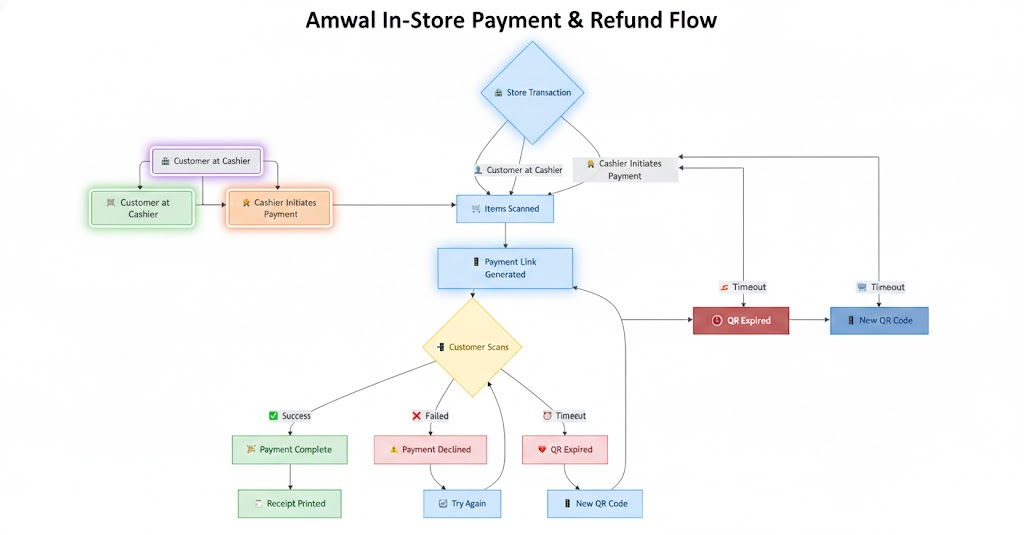
POS payment flow
- Create a pending sale. Add items, taxes, discounts, and the final amount in your POS. Assign the sale a unique order ID.
- Create an installment link. Submit the amount, order ID, customer details, and optional expiry date through the Create Installment Link endpoint. Use
send_sms: trueto send the link to the customer's phone, or display the returned link for the customer to open. - Ask the customer to complete payment. The customer opens the Amwal payment link and selects an available payment option. Keep the POS sale pending while the payment is in progress.
- Receive the payment result. Amwal returns the transaction ID through the callback URL and sends payment-event notifications to your webhook endpoint.
- Verify the transaction. Retrieve the transaction details with the transaction ID. Complete the sale only when the transaction
statusissuccess. - Issue the receipt and fulfill the sale. Mark the POS sale paid, print or send the receipt, and release the goods only after confirmation.
Do not treat link creation as payment
Creating an installment link only starts the payment flow. The sale remains unpaid until Amwal confirms a successful transaction.
Create the installment link
Create one installment link for each POS sale. Include amount and order_id, then add customer contact details when you want Amwal to send the link by SMS.
| Field | Type | POS guidance |
|---|---|---|
amount | number | Send the final amount shown on the POS sale. |
order_id | string | Use your POS receipt or sale ID so you can match the payment to the sale. |
client_phone_number | string | Provide the phone number in international format when sending the link by SMS. |
send_sms | boolean | Keep the default true for an SMS-based POS flow. |
singleUse | boolean | Keep the default true to prevent a completed link from being used again. |
selectedDate | string | Set an ISO 8601 expiry date when the customer must complete payment within a defined period. |
callback_url | string | Provide the URL that receives the transaction ID after payment. |
metadata | object | Store POS-specific tracking data, such as terminal or branch identifiers. |
Link expiry and retries
A single-use link remains valid until it expires or a payment attempt completes, whether successful or failed. If an attempt fails, create or reuse a link only according to your store's retry policy; do not mark the sale paid.
Confirm the result
Use the transaction ID returned through the callback URL to retrieve the final transaction record:
GET /payment_links/transaction/{transaction_id}/details
Authorization: your_api_key_here
Update the POS sale from the verified transaction status:
| Amwal transaction status | POS action |
|---|---|
success | Mark the sale paid, issue the receipt, and fulfill the order. |
fail | Mark the payment attempt failed. Record failure_reason when it is provided, then offer the customer another payment attempt. |
| Any other status | Keep the sale pending. Do not release goods or close the sale as paid. |
Receive payment notifications
Use webhooks as the server-to-server confirmation of payment events. Your webhook endpoint must accept JSON POST requests over HTTPS and return a response within 30 seconds.
- Verify the
X-API-Keyheader against your stored API key fingerprint. - Verify the
X-Signatureheader with RSA-PSS and SHA-256 before processing the payload. - For
order.success, matchdata.merchant_order_idto the pending POS sale, recorddata.payment.transaction_id, and complete the sale once. - For
order.failed, record the failed attempt anddata.failure_reasonwhen available. Keep the sale unpaid. - Return HTTP
200after your system accepts the event. Return4xxfor permanent validation errors and5xxwhen Amwal should retry delivery.
Make webhook processing idempotent (safe to repeat). A duplicated event must not issue a second receipt, decrement inventory twice, or create another fulfillment record.
See Receiving Webhook Events for payload examples and Authentication & Security for signature requirements.
Order status flow
Map Amwal's transaction status to your POS order status before enabling automatic receipt printing or fulfillment.
Related endpoints
Create an installment link for a POS sale.
Review installment links with filtering and pagination.
Verify the final status of an individual transaction.
Resolve an installment link shared by SMS, email, or web.
Process refunds for completed POS transactions.
Updated 22 days ago