
Create a Store
Amwal supports multi-entity and multi-store architectures directly under a single merchant umbrella account. Each store operates in full isolation with its own dedicated Store ID, distinct API Integration Keys, separate webhook listener endpoints, and independent financial settlement ledgers.
1. Why Create Multiple Stores?
- Brand Segmentation: Operate multiple consumer brands or domain names under one legal entity while keeping transaction records and customer receipts separated.
- Platform Separation: Isolate your Shopify web store from your native iOS/Android mobile application or POS retail terminals.
- Dedicated IBAN Settlements: Route payout funds from different business units into distinct corporate bank accounts if needed.
- Isolated Developer Credentials: Prevent developer test keys from intersecting across different engineering squads.
2. Step-by-Step Creation Walkthrough
Step 1: Open Store Creation Form
Log in to your Amwal Merchant Portal, click your organization avatar in the top-right corner, and select Create Store.
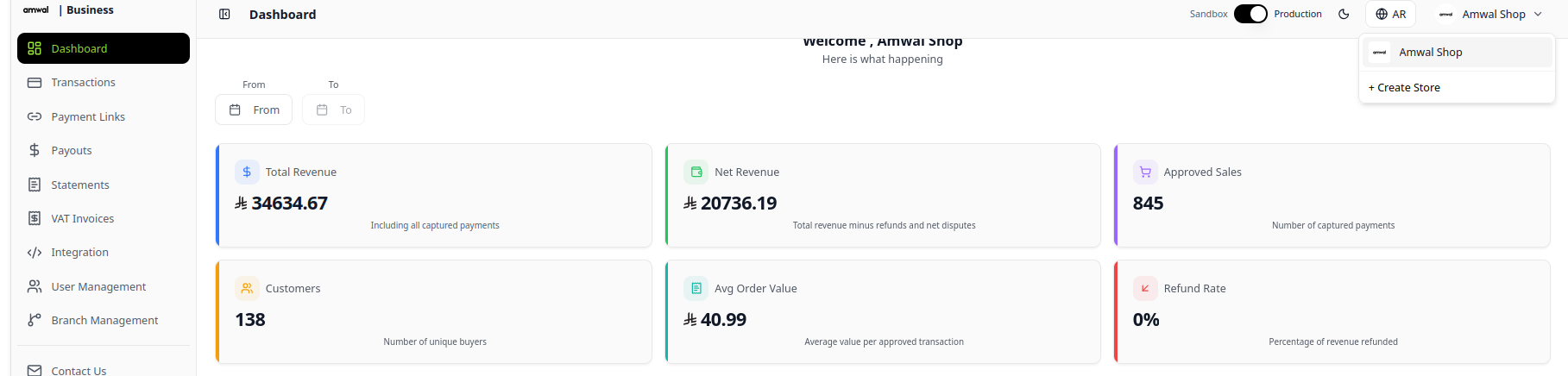
Step 2: Configure Basic Store Information
Enter the commercial and public identity attributes for your digital storefront:
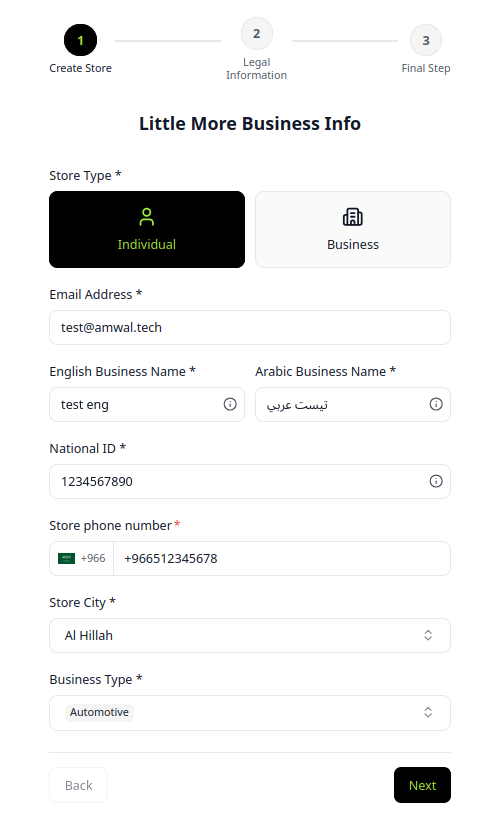
| Field Name | Type | Description | Example |
|---|---|---|---|
| Store Name | String | Public brand name shown to buyers on payment pages and SMS links. | Al-Faisaliah Luxury |
| Store URL | URL | Primary HTTPS web address of your storefront. | https://alfaisaliah.com |
| Country | Select | Primary operating jurisdiction (Default: Saudi Arabia (KSA)). | Saudi Arabia |
| Currency | Select | Operating transaction currency. | SAR (Saudi Riyal) |
| Category | Select | Commercial activity category matching your commercial license. | Retail & Fashion |
Step 3: Legal & Banking Verification
In compliance with SAMA (Saudi Central Bank) and ZATCA regulations, provide your official corporate verification details:
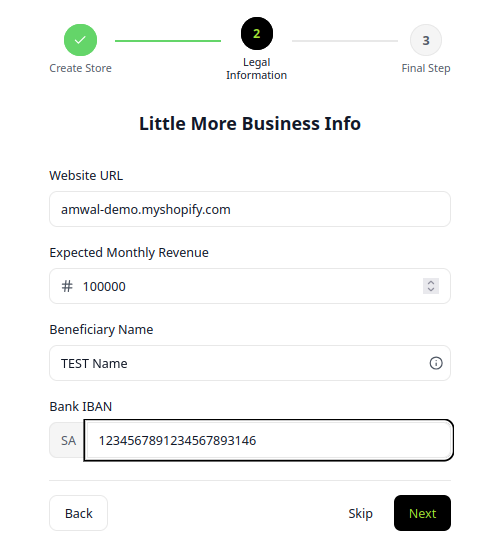
| Legal Document | Description | Format / Verification |
|---|---|---|
| Commercial Registration (CR) | 10-digit Saudi Ministry of Commerce registration number. | 1010XXXXXX (Validated via Wathiq) |
| ZATCA VAT Certificate Number | 15-digit Value Added Tax identification number starting and ending with 3. | 3XXXXXXXXXXXX03 |
| Settlement IBAN | Corporate Saudi bank account for automated SARIE payout transfers. | SAXXXXXXXXXXXXXXXXXXXXXXXX |
| National Address | Registered SPL Saudi National Address of the business headquarters. | Building No, Street, District, City |
Step 4: Submission & Compliance Review
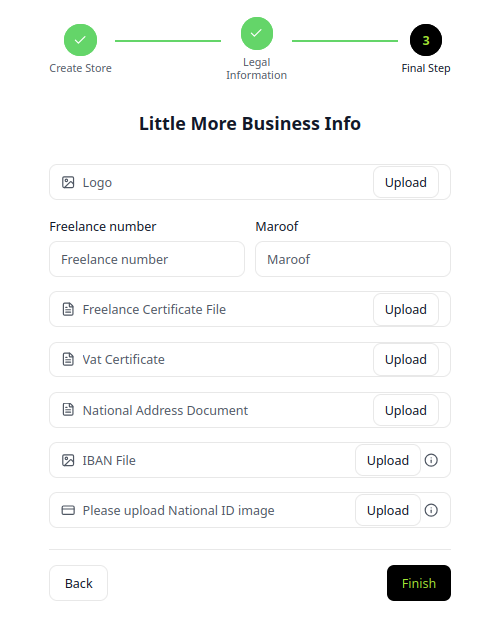
- Review all entered details for typographical accuracy.
- Accept the Merchant Service Agreement and processing terms.
- Click Submit for Verification.
3. Testing While Under Review
You do not need to wait for compliance approval to begin technical integration. The moment you submit the store form:
- Your Sandbox Store ID and Sandbox API Keys are provisioned immediately.
- You can install plugins (WooCommerce, Shopify, Magento) or start custom API development using Test Cards.
- Once compliance verification is complete, switch your plugin configuration from Sandbox Key to Production Key.
Dashboard Overview
Comprehensive guide to navigating the Amwal Merchant Portal, monitoring live financial performance, managing multi-store operations, and accessing developer tooling.
User Management
Comprehensive guide to inviting team members, assigning role-based access permissions, managing branch staff, and auditing portal activity.