
User Management
The User Management console allows organization owners and administrators to invite team members, assign granular operational roles, link staff to physical store branches, and revoke access instantly when employee responsibilities change.
1. Prerequisites & Access Controls
Administrative Authority
In accordance with security governance standards, only users with the Owner or Admin role have authorization to invite new team members, alter existing permissions, or delete users.
2. Inviting a New Team Member
Step 1: Open User Directory
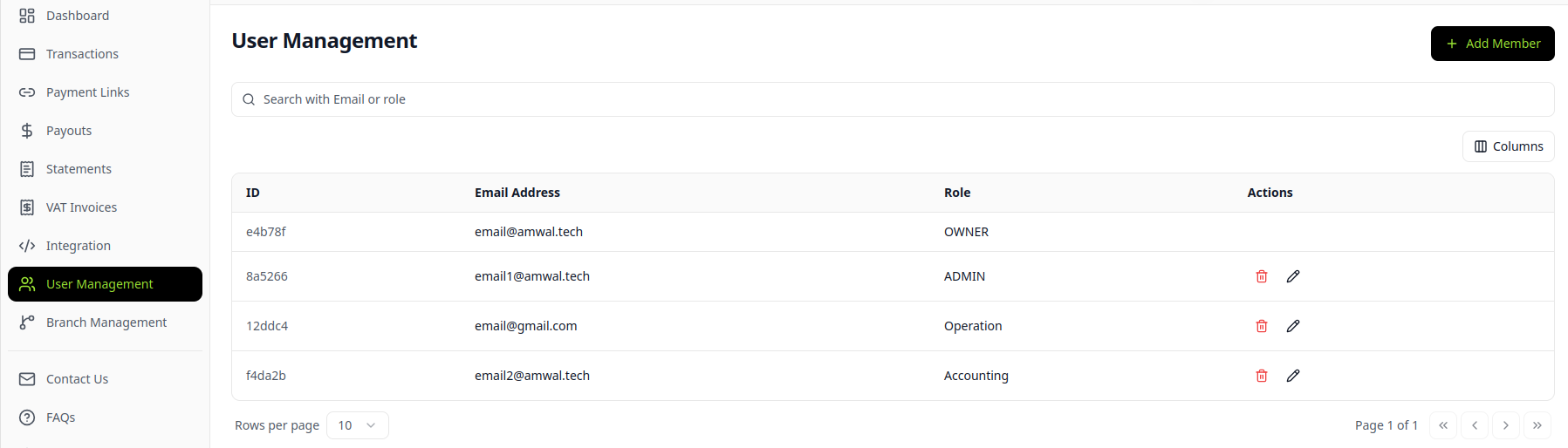
Navigate to User Management in the left sidebar menu to view your active roster, pending invitations, and assigned roles across all store entities:
Step 2: Configure Member Profile
Click the + ADD MEMBER button in the top-right corner to open the invitation modal:
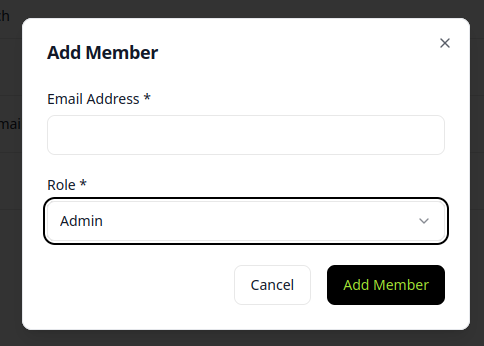
| Form Field | Type | Required | Description |
|---|---|---|---|
| Email Address | Email String | Yes | Corporate email address of the employee within your store's registered business domain. Used for login authentication and password recovery. |
| Role | Dropdown | Yes | Operational role governing menu visibility and API capabilities. See User Roles Matrix. |
| Branch | Dropdown | Conditional | Required if the selected role is Supervisor or Cashier. Restricts user access to specific physical branch transactions. |
Store Business Domain Requirement
All newly added users must have an email address within your store's verified business domain (e.g., @yourstore.com). Invitations using personal or public email domains (such as @gmail.com, @yahoo.com, or @outlook.com) are not permitted.
Step 3: Invitation & Onboarding Flow
- Click ADD MEMBER to dispatch the activation invite.
- The invited user receives an automated onboarding email containing a single-use verification link.
- Upon clicking the link, the user sets a strong password, configures 2FA (Two-Factor Authentication), and is immediately directed to their customized dashboard view.
3. Managing Existing Team Members
- Modifying Roles: Click the Pencil (Edit) icon on any member row to elevate or demote permissions (e.g. promoting a Cashier to Branch Supervisor).
- Branch Reassignment: Move in-store staff between physical store branches as operational staffing needs dictate.
- Revoking Access (Deactivation): Click the Trash (Delete) icon to invalidate the user's session immediately. Historical transaction logs recorded under that user's name remain permanently preserved for financial auditing.
4. Security & Compliance Best Practices
Security Recommendations
- Enforce Individual Logins: Never share generic login credentials (e.g.,
cashier@store.com) across multiple staff members. Issue individual accounts to preserve audit trails for refunds and payment link creation. - Periodic Access Audits: Review active users monthly to decommission departed employees.
- Strict Accounting Isolation: Assign finance staff to the Accounting role so they can download ZATCA tax invoices without having access to modify API credentials or store configurations.
Create a Store
Step-by-step guide to provisioning independent online stores, managing isolated API keys, and meeting Saudi regulatory compliance.
User Roles and Permissions
In-depth reference for Amwal Merchant Dashboard role-based access controls (RBAC), permission tiers, operational boundaries, and security restrictions.