
Statements & Reports
The Amwal Merchant Dashboard provides comprehensive financial reporting, automated bank payout reconciliations, and downloadable ZATCA/SAMA-compliant VAT invoices under Reports.
1. Statements
The Statements view provides an itemized accounting ledger of your daily settled volumes, processing fees, and net balance adjustments:
Key Statement Information
- Gross Volume: Total processed sales and installment payments in SAR.
- Fees Breakdown: Itemized MDR transaction fees and associated VAT deductions.
- Net Settlements: Reconciled totals scheduled for payout to your registered bank account.
- Export Formats: Download statement summaries in CSV or Excel format for internal bookkeeping and ERP ingestion.
2. Payouts
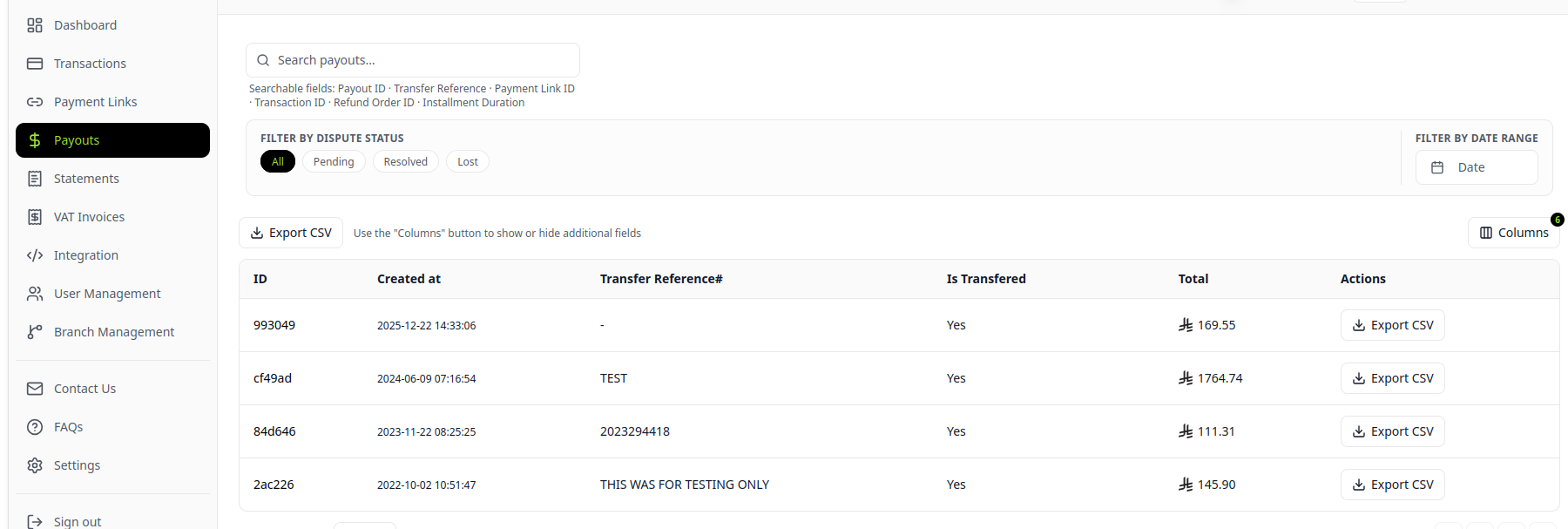
The Payouts console tracks the status and timeline of net funds transferred via the SARIE interbank network directly into your registered Saudi corporate IBAN:

Payout Details
- Payout ID & Reference: Unique bank reference code for matching against your monthly bank statements.
- Status Tracking: Monitor settlements across states (
Pending,In Transit,Completed). - Settlement Timeline: Automatically disbursed according to your agreed payout schedule (typically T+2 or T+3 business days), providing steady working capital without waiting for monthly buyer installment repayments.
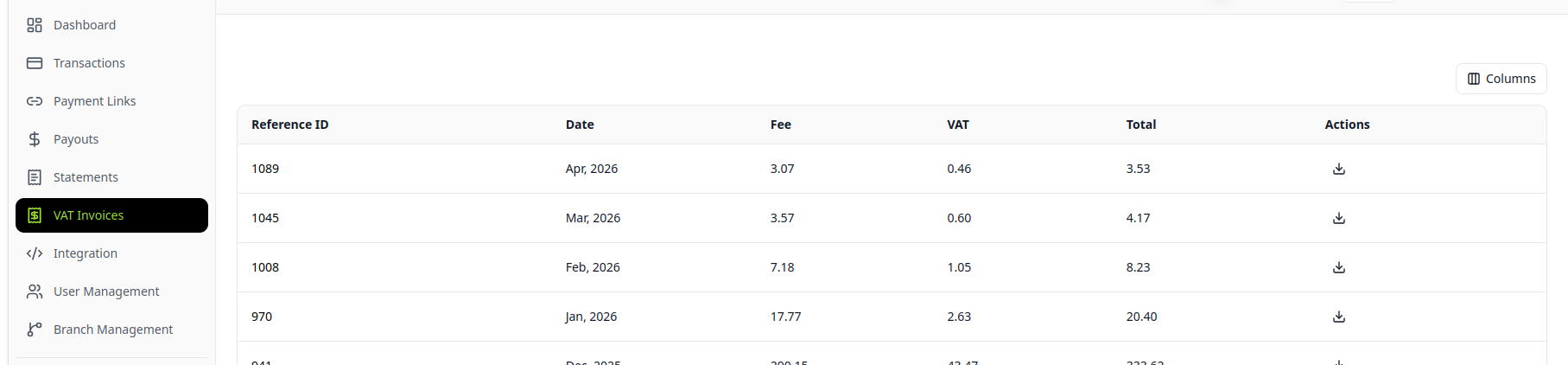
3. ZATCA-Compliant Electronic VAT Invoices
Each completed settlement batch generates an official, ZATCA and SAMA-compliant electronic VAT tax invoice for your statutory tax filing:
VAT Invoice Features
- Sequential Tax Invoice Numbering: Formatted to meet Saudi General Authority of Zakat and Tax (ZATCA) regulations.
- MDR Fee Breakdown: Detailed accounting of merchant discount rates and 15% VAT on service charges.
- Downloadable PDF: Official stamped tax invoice document ready for your accounting and audit team.
4. Filtering & Exporting Reports
- In the Merchant Dashboard, navigate to Reports → Statements (or Payouts / VAT Invoices).
- Select your desired Date Range (e.g. Last 30 Days, This Month, or Custom Date Range).
- Filter by Store or Branch if managing multiple sales channels or retail locations.
- Click Export and choose your preferred format:
- CSV: Raw comma-delimited transaction records for custom ERP ingestion.
- Excel (.xlsx): Formatted financial spreadsheets with formula summaries.
- PDF Tax Invoice: Official SAMA & ZATCA-compliant electronic VAT tax invoice.
Related Documentation
Refund a Payment
Comprehensive operational guide to issuing payment refunds, understanding SAMA card scheme timeframes, fee reconciliations, and installment reversals.
Plugins Overview
Turnkey e-commerce plugins for Shopify, WooCommerce, and Adobe Magento with 0% Bank Installments and 1-Click Checkout.