
Troubleshooting Shopify Integration
If the Amwal 0% Bank Installments payment method does not appear in your Shopify checkout or the promotional marketing badge is not visible on your product pages, follow this diagnostic guide.
1. Amwal Not Appearing in Shopify Checkout
Issue 1: Store Currency is not SAR
- Requirement: Amwal 0% Bank Installments strictly require Saudi Riyals (
SAR) as the checkout currency per SAMA regulations. - Fix:
- Open Shopify Admin → Settings → Store Details.
- Under Store Currency, ensure the currency is set to Saudi Riyal (SAR).
- If using Shopify Markets for cross-border commerce, ensure Saudi Arabia is assigned
SARas its local settlement currency.
Issue 2: Payment Gateway in Draft Status
- Fix:
- Go to Settings → Payments → Supported Payment Methods.
- Locate Amwal Payment and verify that the toggle is Active (not Draft or Inactive).
- Ensure your Merchant ID (Public Key) and Secret Key are entered without leading or trailing spaces.
2. Product Page Installment Widget Not Rendering
Activate Theme App Extension (Shopify Online Store 2.0)
If you are using a modern Online Store 2.0 theme (Dawn, Sense, Craft, etc.):
- In Shopify Admin, open Online Store → Themes → Customize.
- In the top navigation dropdown, select Products → Default product.
- In the left template outline under the Product Information section, click Add block.
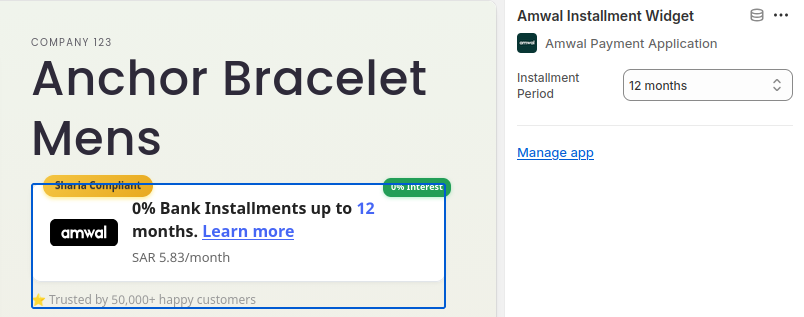
- In the Apps tab, select Amwal Installment Widget.
- Position the block directly beneath the Price block and click Save.
Vintage Themes (Liquid Architecture)
If you are using a legacy vintage theme that does not support Theme App Extensions, you can manually inject the Amwal marketing widget snippet into snippets/product-template.liquid directly below the price element.
3. Orders Not Transitioning to "Paid"
Symptom
Customer completes bank installment checkout, but the order remains in Payment Pending or Authorized in Shopify Admin.
Root Cause
Webhook synchronization delay or network timeout between Amwal and Shopify's payment callback infrastructure.
Resolution
- In the Amwal Merchant Portal, navigate to Stores and verify your registered Shopify URL format (
https://your-store.myshopify.com). - Open Developers → Webhook Logs to confirm that
order.successevents received anHTTP 200response from Shopify. - If webhooks are failing, re-open the Amwal App inside Shopify Admin and click Authenticate & Save to refresh OAuth session tokens.
4. Switching Between Sandbox and Production
| Step | Action in Shopify Admin |
|---|---|
| Sandbox Testing | Go to Settings → Payments → Amwal Payment, check Enable test mode, and enter your Sandbox API Key. Test with Sandbox Cards. |
| Going Live | Enter your approved Production Key, uncheck Enable test mode, and click Save. Live transactions will now process through Saudi partner banks. |
Related Guides
Troubleshooting Rate Limits & Duplicate Transactions
Handling HTTP 429 Too Many Requests, implementing exponential backoffs, and preventing duplicate charges with idempotency guards.
Troubleshooting WooCommerce Integration
Resolve WooCommerce order status sync issues, cURL SSL errors on shared hosting, refund API secret requirements, and WordPress caching conflicts.