
WooCommerce Configuration
Configure your Amwal merchant credentials, payment methods, test mode, automated webhooks, and visual styling in WordPress WooCommerce.
Rendering diagram...
1. Configure API Credentials
Navigate to WordPress Admin → Amwal Settings → General:
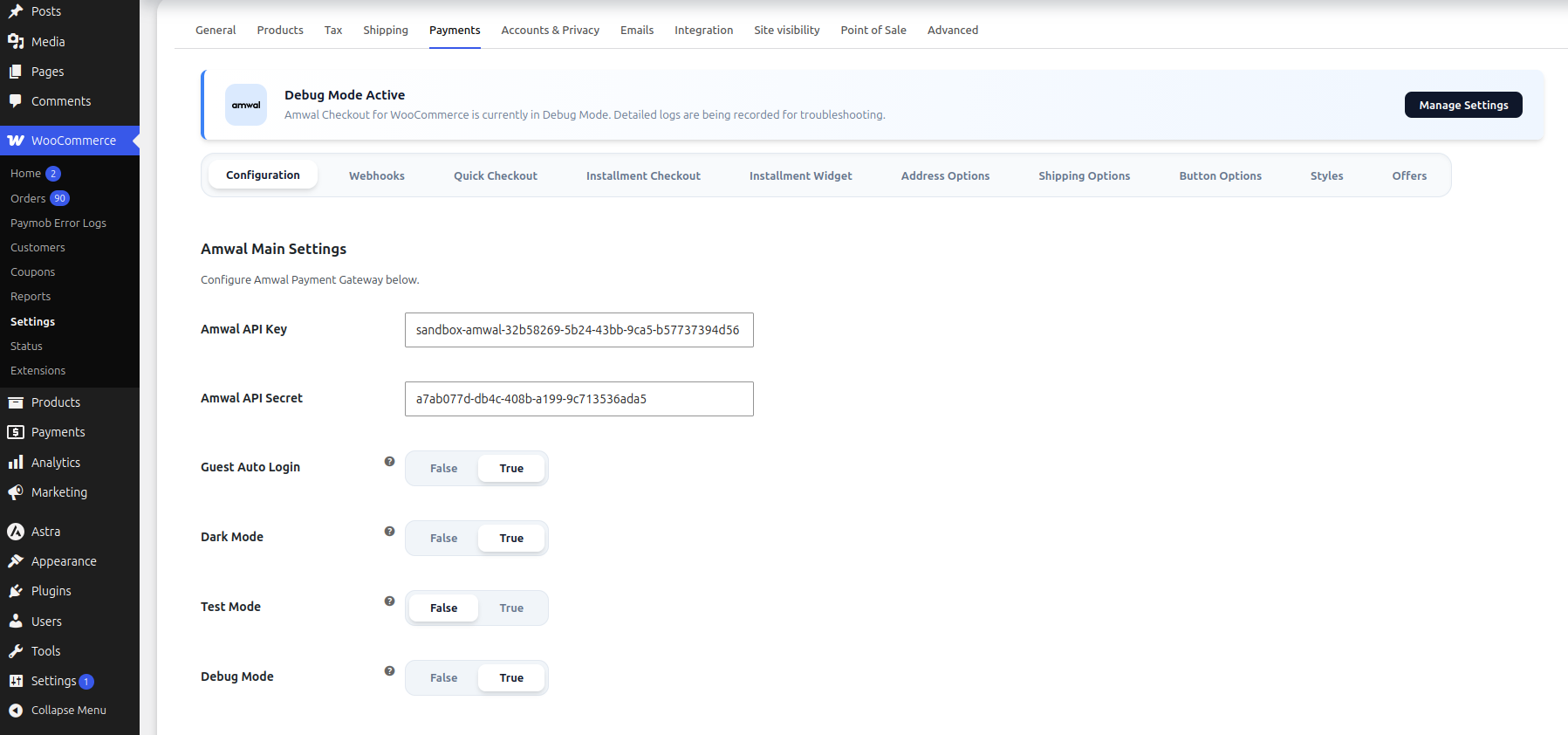
- Amwal API Key: Paste your Merchant ID (Sandbox or Production Public Key) from the Amwal Merchant Dashboard.
- Amwal API Secret: Paste your Secret Key to enable automated refunds directly from the WooCommerce order edit screen.
- Click Save Changes.
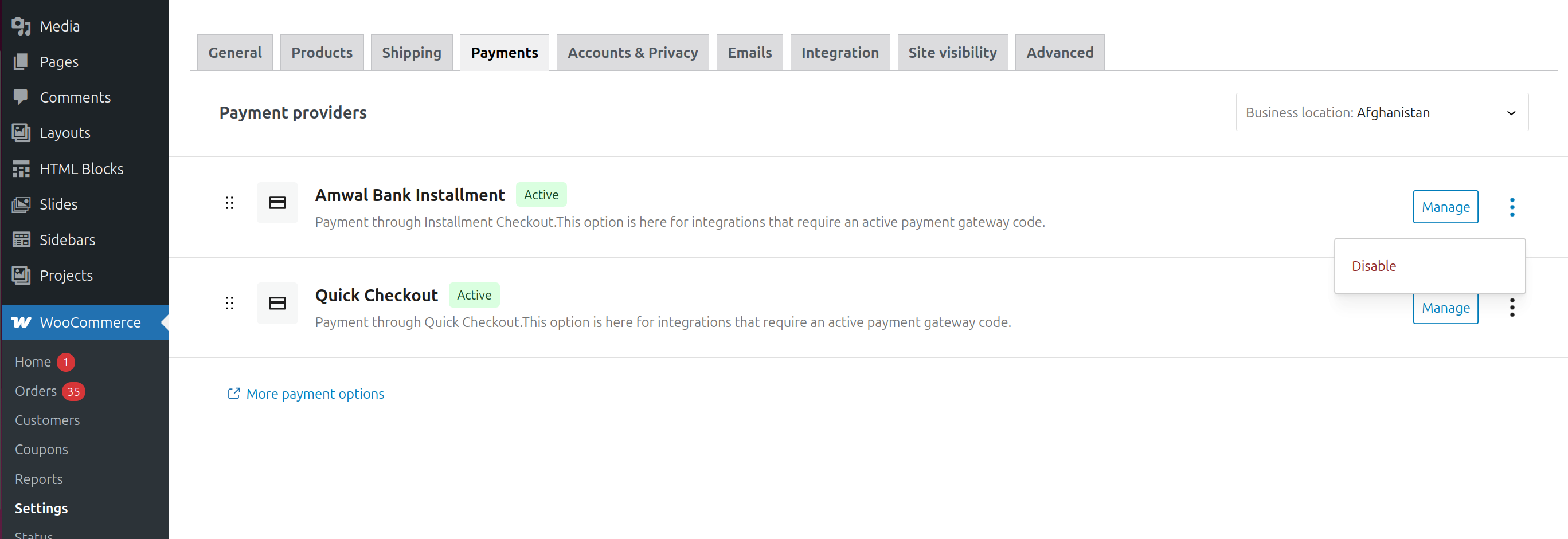
2. Test Mode & Going Live
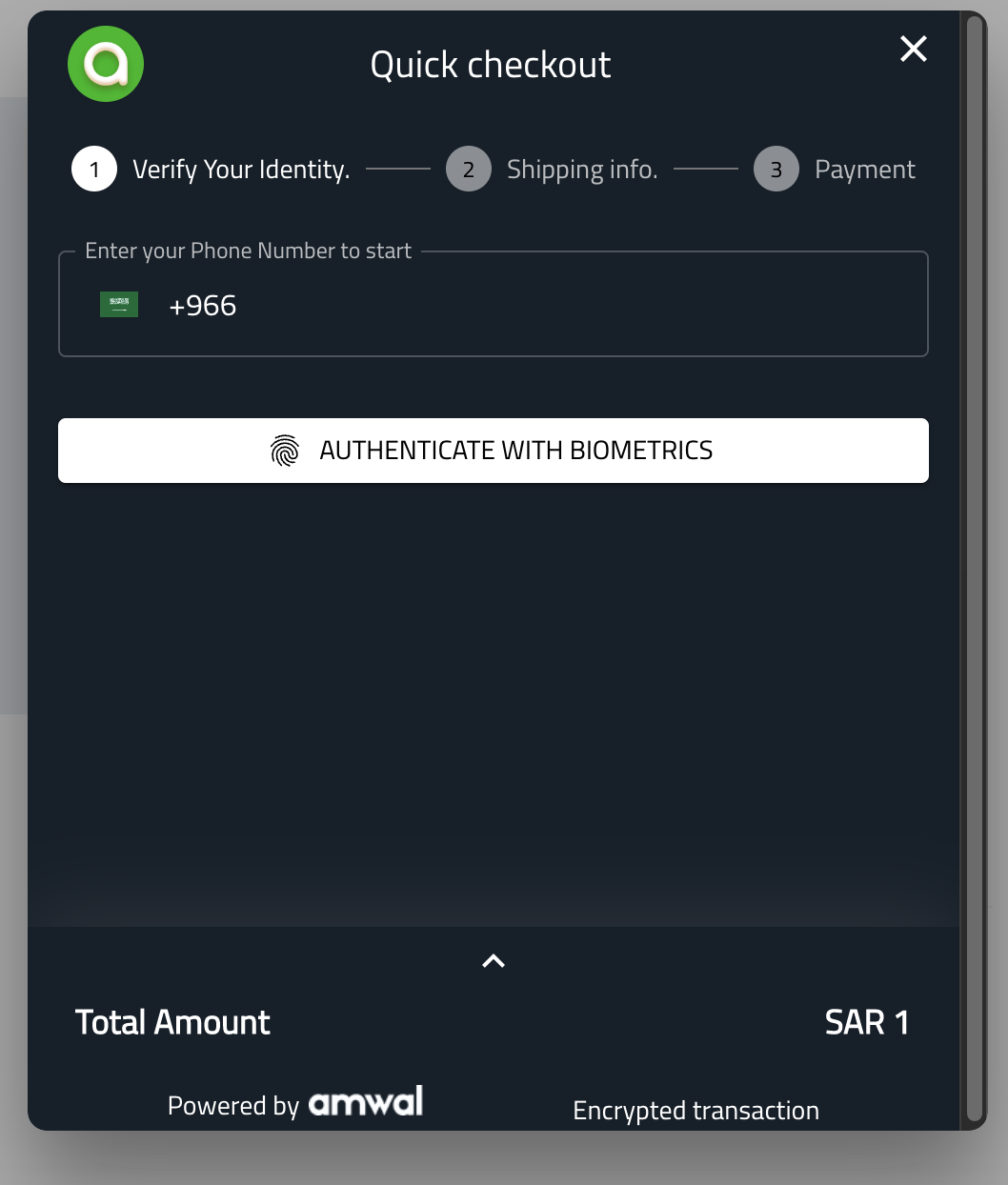
- Test Mode: When checked, only logged-in administrators will see the Amwal checkout button on the storefront.
- Going Live: Once you have tested using Sandbox Test Cards, enter your approved Production Key, uncheck Test Mode, and save changes.
3. Webhook Integration
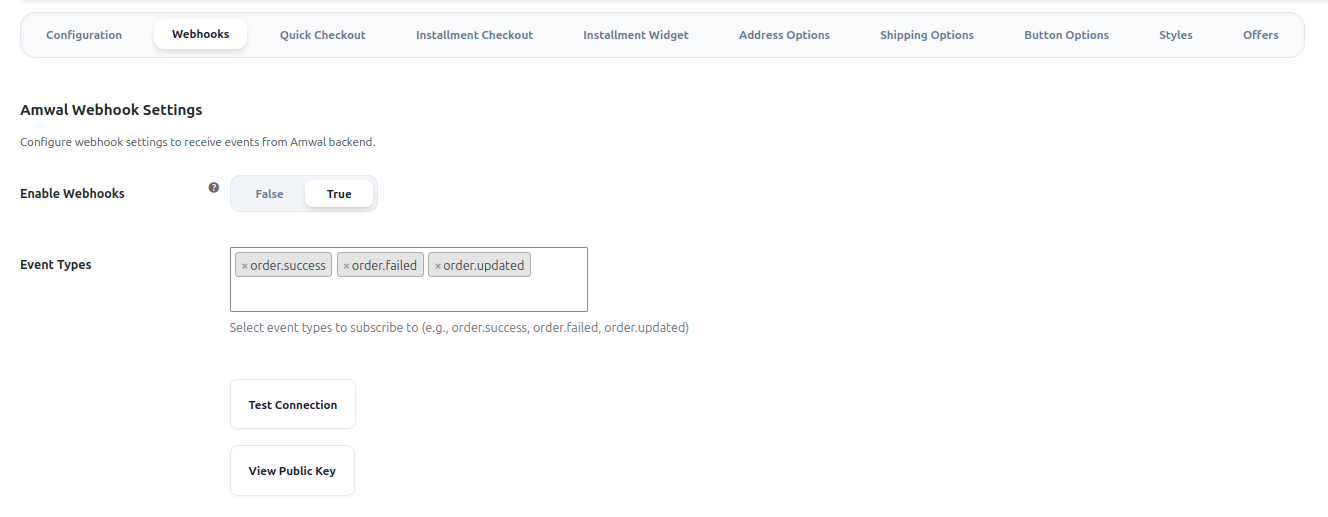
Configure real-time server-to-server notifications for instant order status updates:
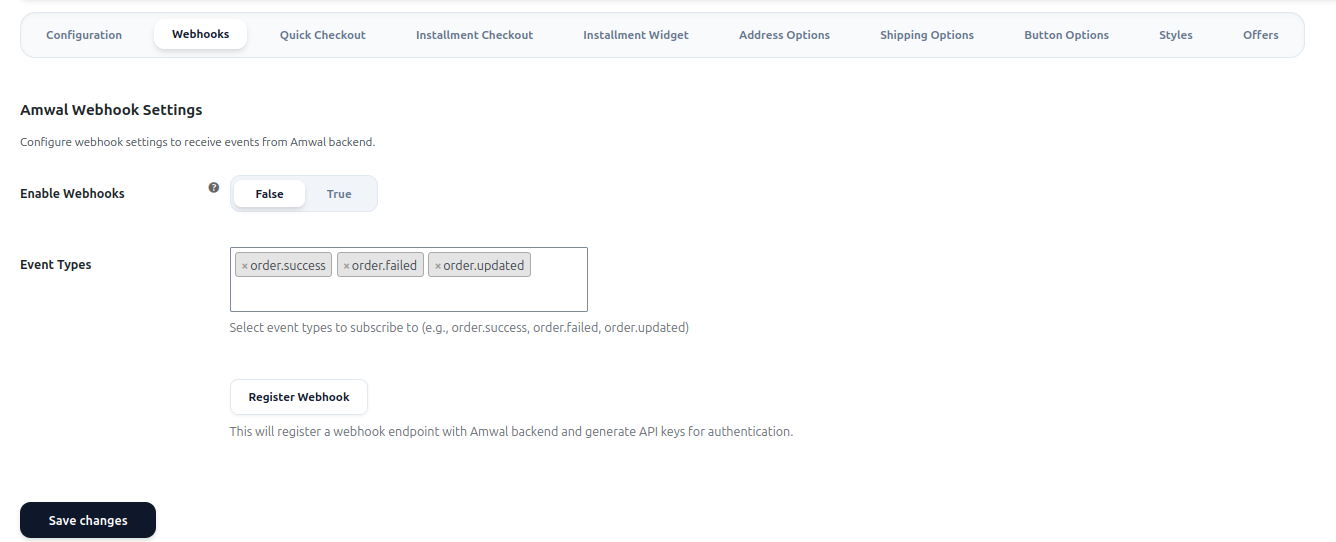
- Webhook Endpoint: WooCommerce generates your unique listener URL (
https://yourstore.com/?wc-api=amwal_webhook). - Secret Token: Enter your webhook secret to cryptographically verify incoming payload signatures.
4. 0% Bank Installments Setup
Configure installment options and minimum basket amounts:
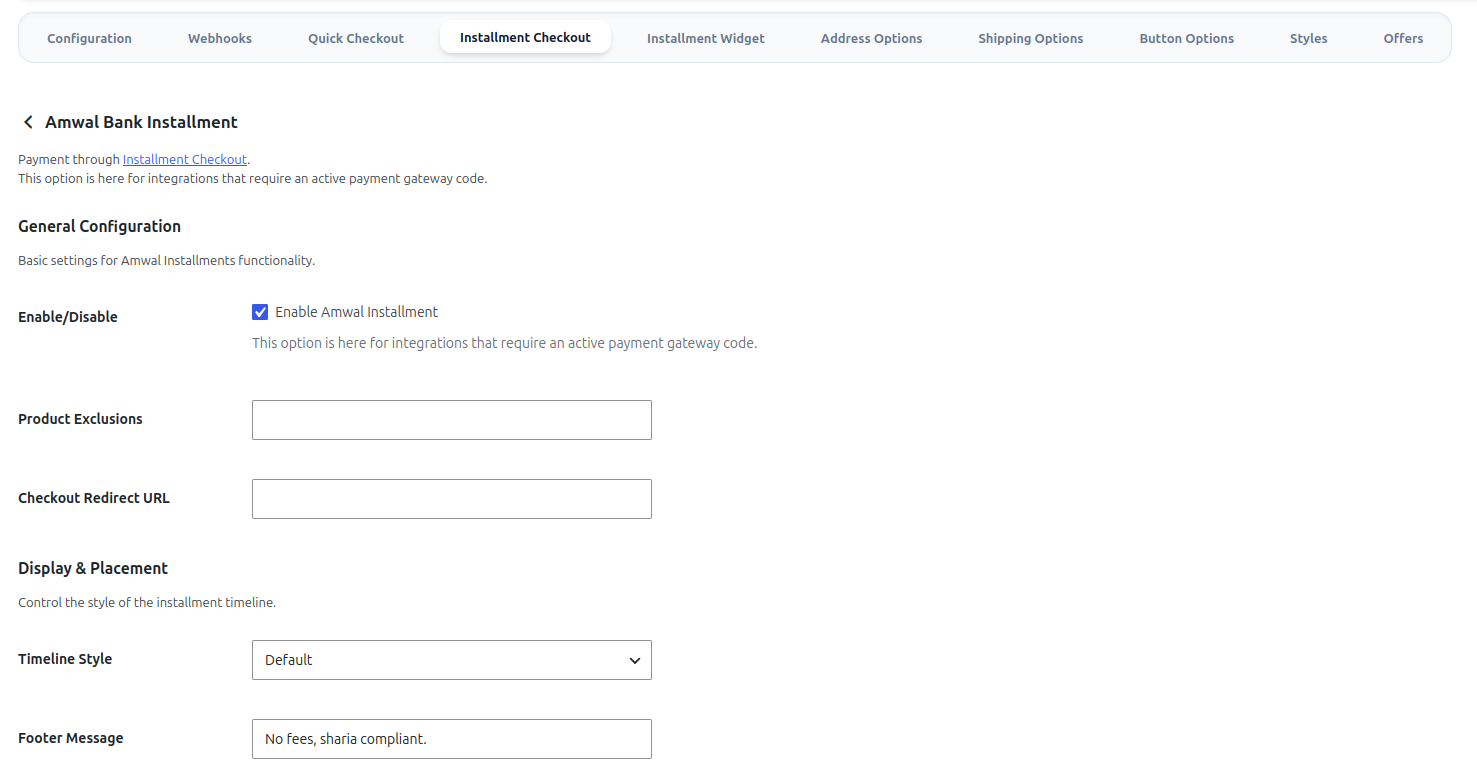
- Enable Installments: Toggle On to allow shoppers to split payments across 3, 6, 12, or 24 months.
- Minimum Installment Amount: Set the minimum cart threshold (e.g.
1,000 SAR) for installments to appear.
5. Address & Shipping Autofill
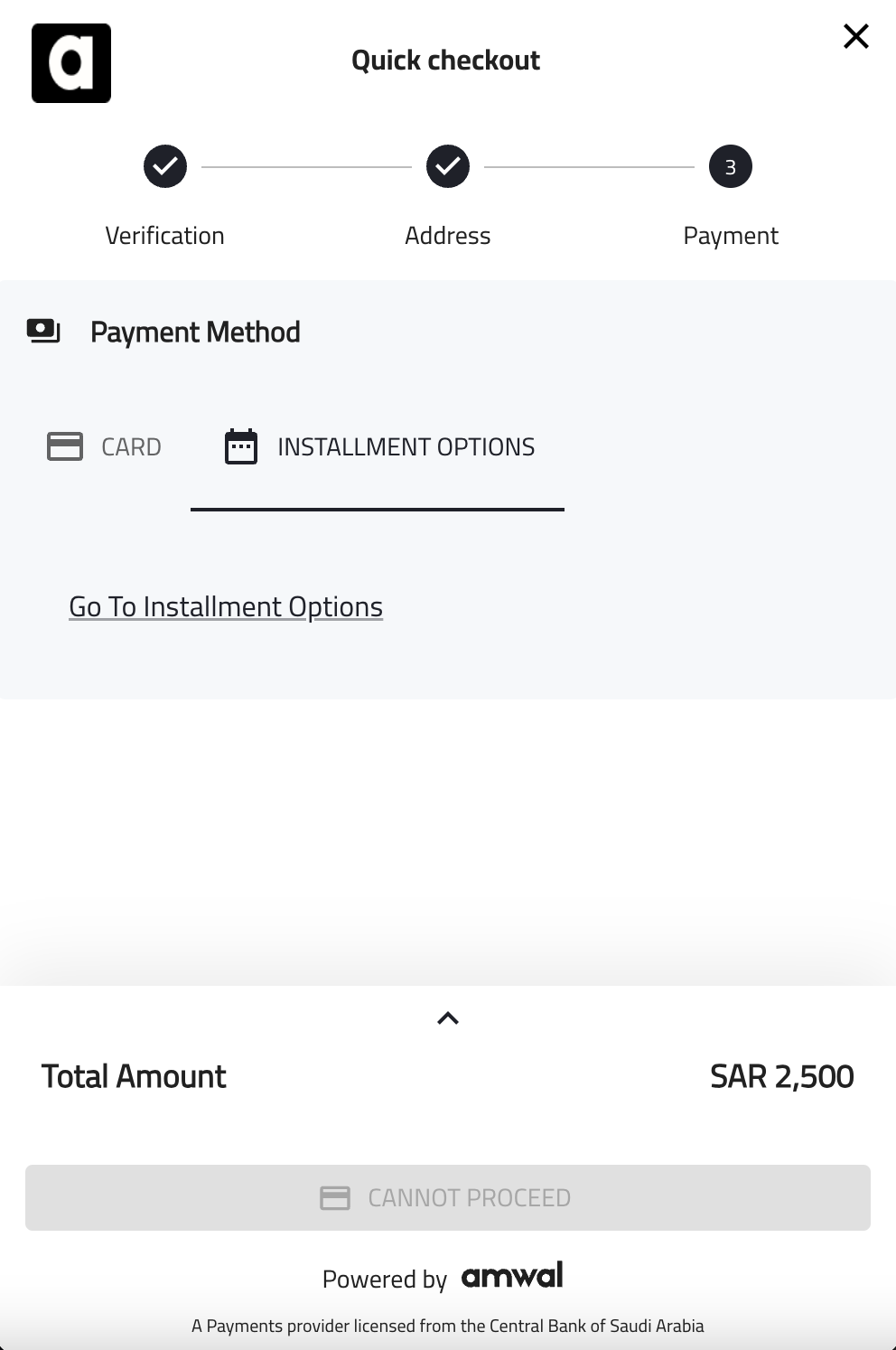
Amwal Passkey and 1-Click checkout can automatically sync customer delivery details directly into WooCommerce:
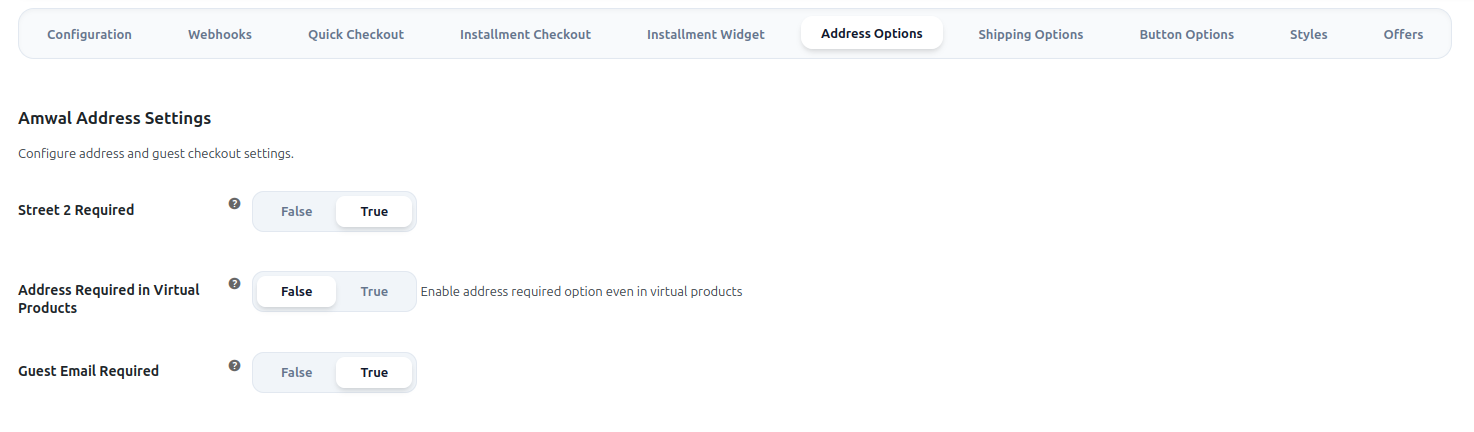
- Auto Fill Address: Automatically populates the billing and shipping address fields from the customer's verified Amwal account.
- National Address Integration: Seamlessly maps Saudi National Address data (Short Address Code, Building Number, Postal Code).
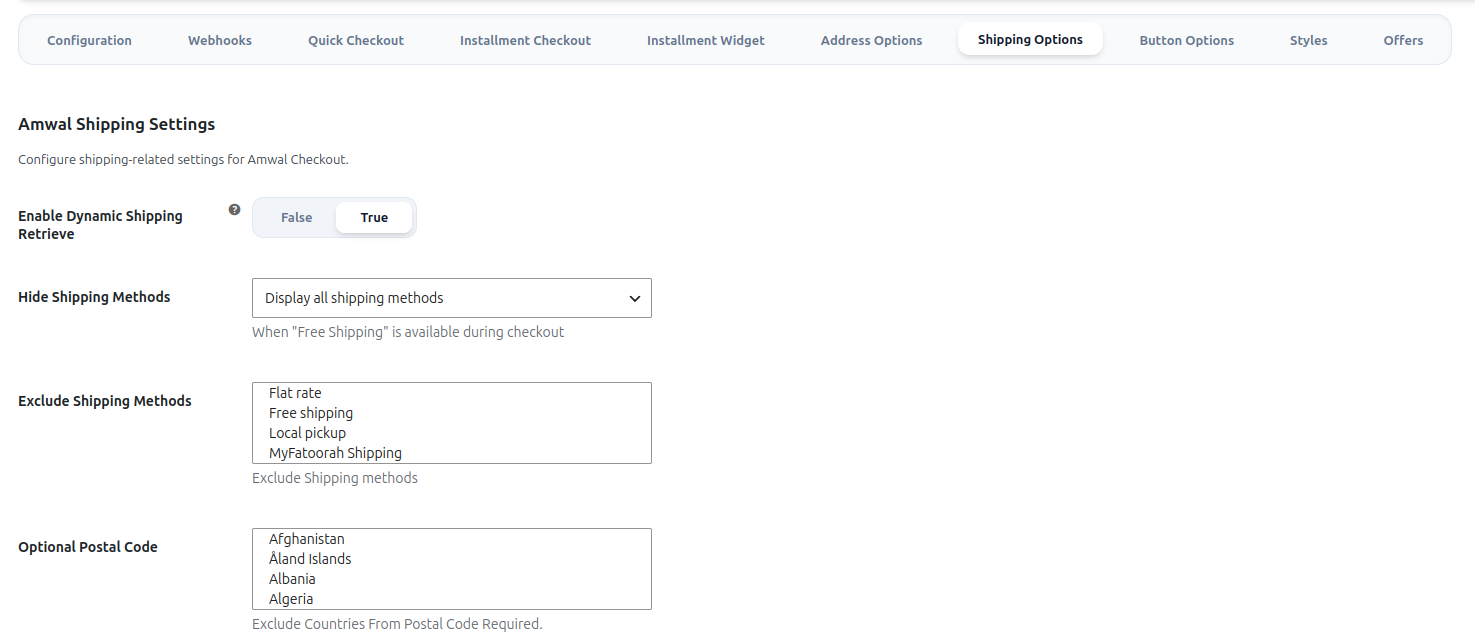
6. Button Display & Theme Styling
Customize the checkout button to blend with your WooCommerce theme:
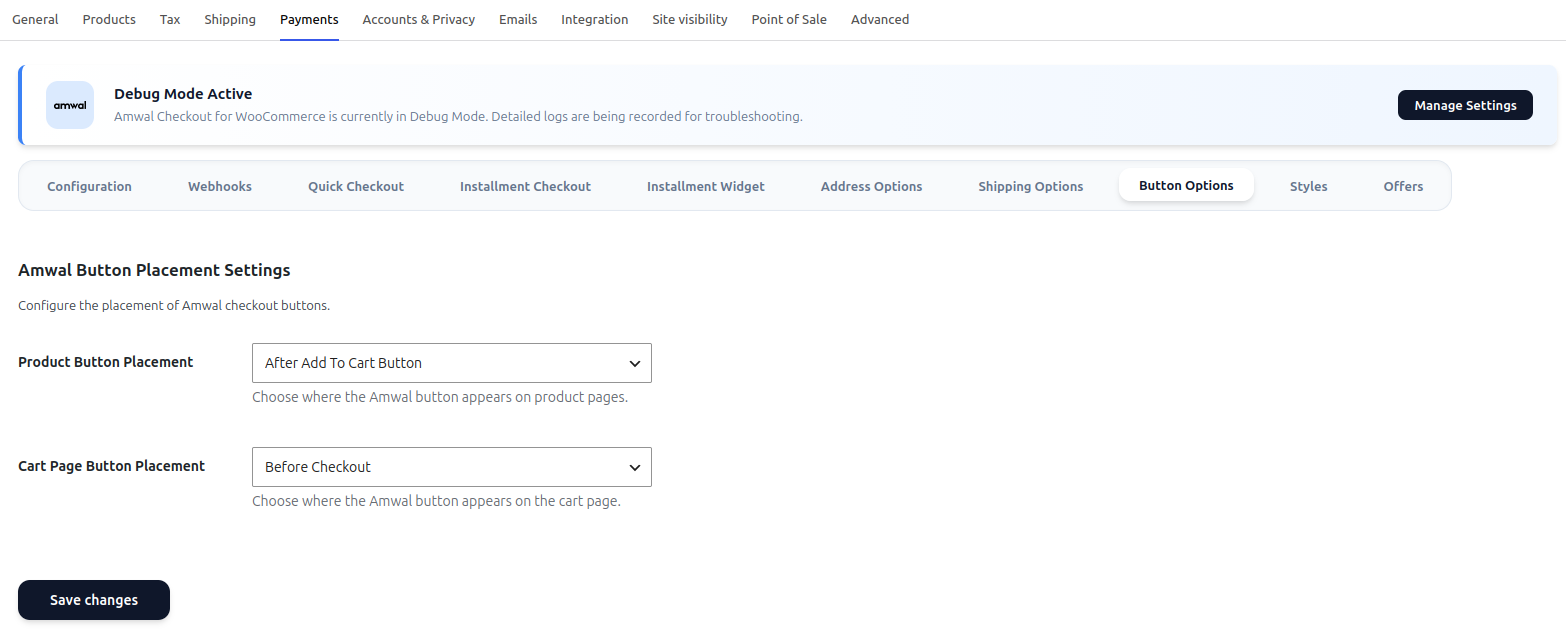
- Button Theme:
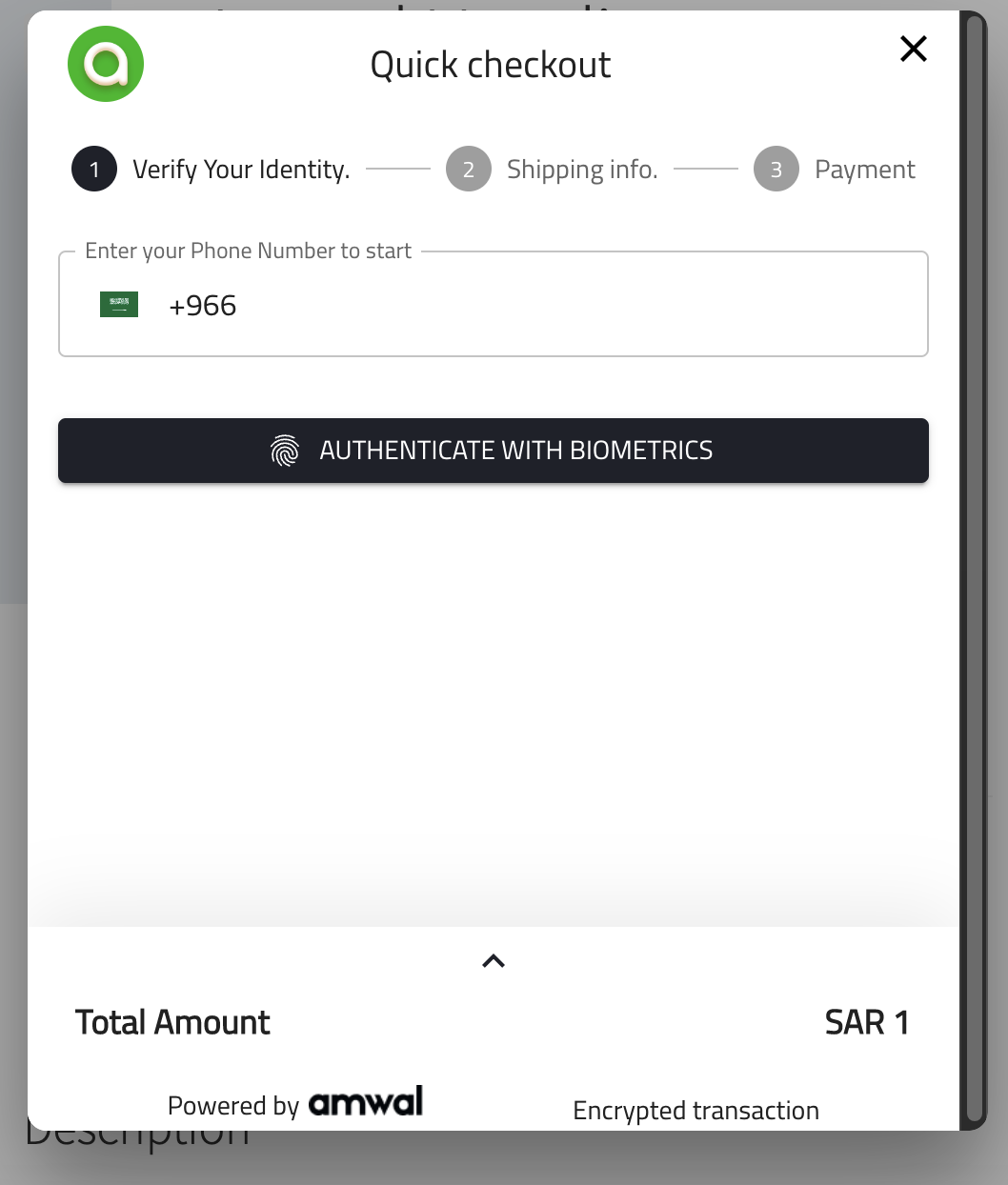
Dark: High-contrast black button.Light: Clean white button with dark border.
- Button Positions: Display on Single Product Pages, Cart Page, Mini-Cart Drawer, and Checkout Page.
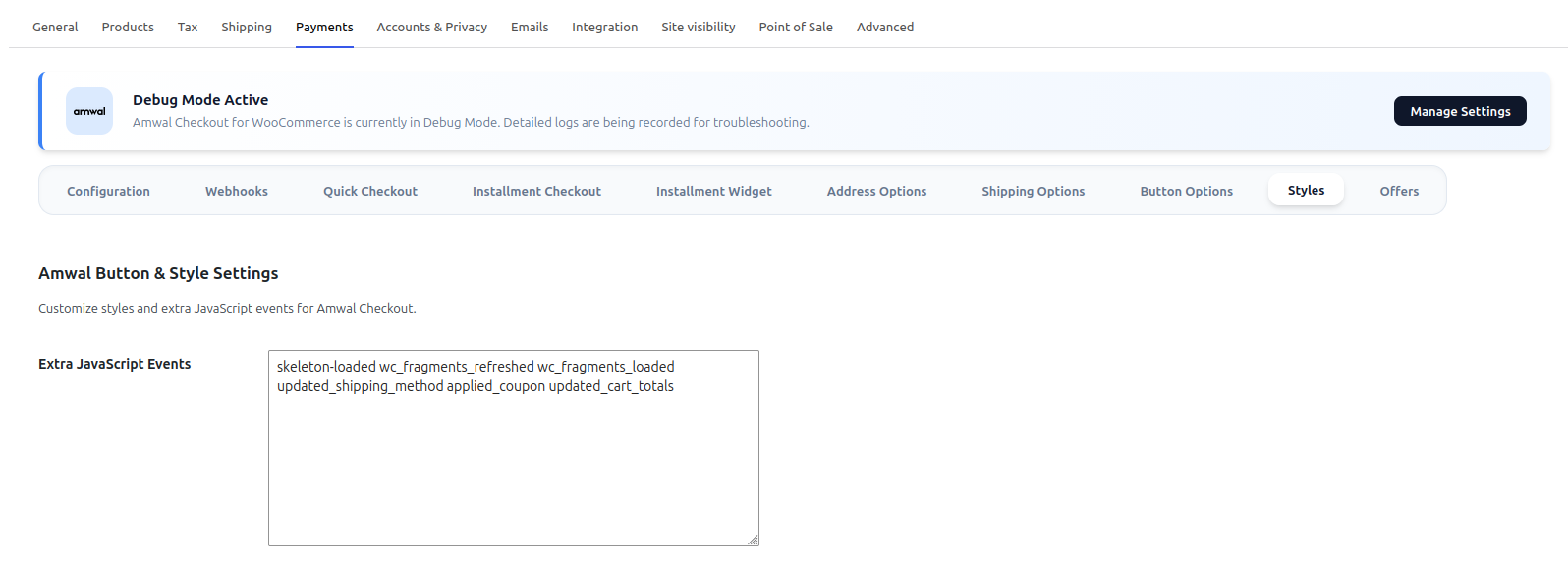
7. Discount Campaigns & Offers
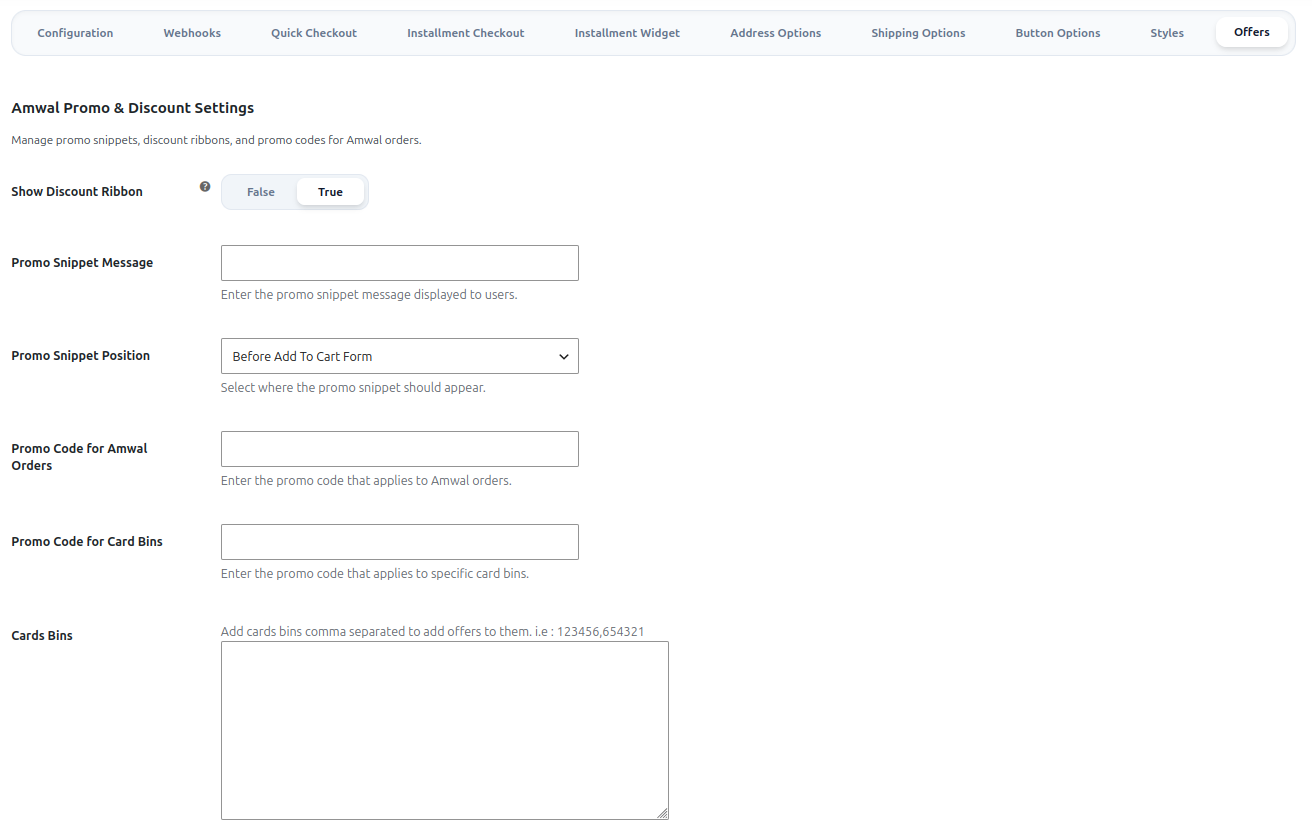
- Configure special promotional banners highlighting active bank discount campaigns or zero-fee installment promotions directly inside your WooCommerce catalog.