
Webhook Setup
Amwal uses secure HTTPS webhooks to notify your backend in real time whenever payment lifecycle events occur—including order authorizations, installment plan underwriting decisions, refunds, disputes, and modal dismissals.
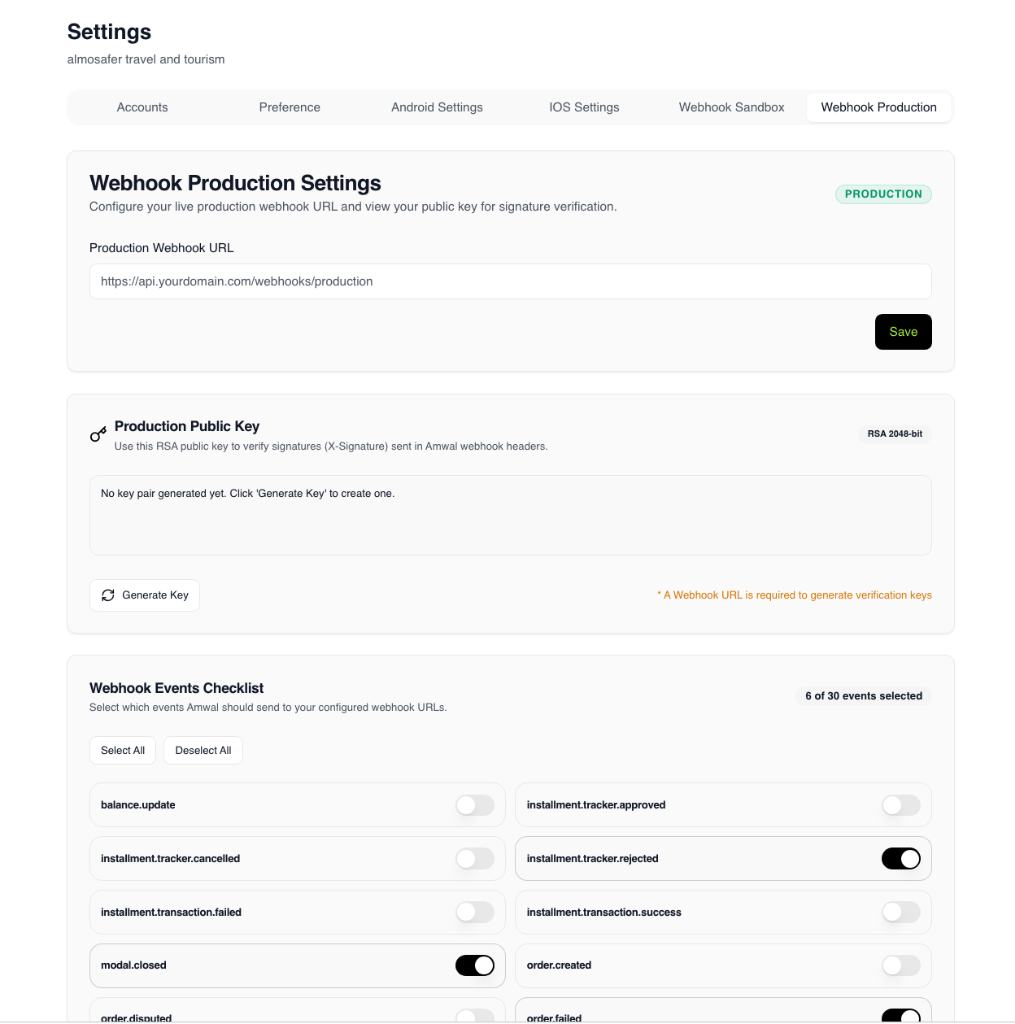
Webhook listener endpoints and cryptographic verification keypairs are managed directly within the Amwal Merchant Portal under Settings.
Merchant Portal Webhook Settings
Environment Isolation
Amwal provides dedicated configuration tabs for each environment to prevent accidental crosstalk between testing and live payment processing:
| Tab | Target Environment | Purpose |
|---|---|---|
Webhook Sandbox | Test / Staging | Receive test transaction dispatches generated by sandbox checkouts and test cards. |
Webhook Production | Live Production | Receive live customer checkout events, bank installment bookings, and refund updates. |
Each environment maintains its own Webhook URL, RSA 2048-bit Keypair, and Events Checklist.
Step-by-Step Configuration Guide
Follow these steps in the Amwal Merchant Portal to set up your webhook integration:
Step 1: Open Settings & Select Environment
- Log in to the Amwal Merchant Portal.
- Select your store organization from the top navigation.
- Click on Settings in the portal header.
- Select either the Webhook Sandbox tab (for development/testing) or Webhook Production tab (for live storefronts).
Step 2: Configure Your Webhook URL
- In the Webhook URL field, enter the fully qualified HTTPS destination URL of your server's listener endpoint:
- Example Production:
https://api.yourdomain.com/webhooks/amwal - Example Sandbox:
https://staging-api.yourdomain.com/webhooks/amwal
- Example Production:
- Click Save.
Webhook URL Required for Key Generation
A valid Webhook URL must be saved before you can generate RSA verification keys. Amwal requires a secure HTTPS endpoint with a valid SSL/TLS certificate (self-signed certificates are rejected).
Step 3: Generate the RSA Public Verification Key
- Under the Public Key section (RSA 2048-bit), click "Generate Key".
- Amwal generates an RSA 2048-bit keypair and displays the Public Key in PEM format:
-----BEGIN PUBLIC KEY----- MIIBIjANBgkqhkiG9w0BAQEFAAOCAQ8AMIIBCgKCAQEA... -----END PUBLIC KEY----- - Copy the public key string and store it securely in your backend environment variables:
- Sandbox:
AMWAL_PUBLIC_KEY_SANDBOX - Production:
AMWAL_PUBLIC_KEY_PROD
- Sandbox:
- Use this public key in your webhook receiver to verify incoming
X-Signatureheaders with RSA-PSS SHA-256. See Signature Verification for code examples.
Programmatic Key Management via API
If you are configuring webhooks programmatically or using e-commerce automation plugins, you can retrieve, provision, and rotate your verification keys using the Webhook Public Key API.
Step 4: Configure the Webhook Events Checklist
Amwal allows you to selectively subscribe to only the events relevant to your backend business logic:
- Scroll to the Webhook Events Checklist section.
- Toggle the switch On for each event type you wish to receive. Common events include:
order.success: Customer completed payment successfully.order.failed: Payment was declined or cancelled.installment.tracker.approved: Partner bank approved the installment plan.installment.tracker.rejected: Partner bank rejected the installment plan.order.updated: Full or partial refund was executed.order.disputed: Cardholder initiated a chargeback dispute.modal.closed: Customer dismissed the checkout modal.payment_link.expired: Unpaid link reached its expiration timestamp.
- You can also use Select All or Deselect All to configure subscriptions in bulk.
- Changes are applied immediately to subsequent dispatches.
Key Rotation Procedure
To rotate your webhook verification keys without interrupting live transaction handling:
- Navigate to Settings → Webhook Sandbox or Webhook Production.
- Click Generate Key to produce a fresh RSA 2048-bit keypair.
- Update your backend service with the new public key.
- Because Amwal dispatches include the
X-Api-Keyfingerprint header, your backend verifier can support dual verification during the deployment window (validating against both keys) until all server instances are updated. - Save the configuration to ensure future dispatches use the new private key.
Local Development & Testing
During local development, your local server (e.g. http://localhost:3000) cannot be reached directly by Amwal's cloud gateway. Use an HTTPS tunneling tool to expose your local listener:
# 1. Start your local server application
npm run dev

# 2. Expose local port 3000 through a secure HTTPS tunnel
npx ngrok http 3000
Copy the generated HTTPS URL (e.g. https://xyz.ngrok-free.app/webhooks/amwal), enter it into the Webhook Sandbox tab in the Merchant Portal, and click Save.